Setting Tempo
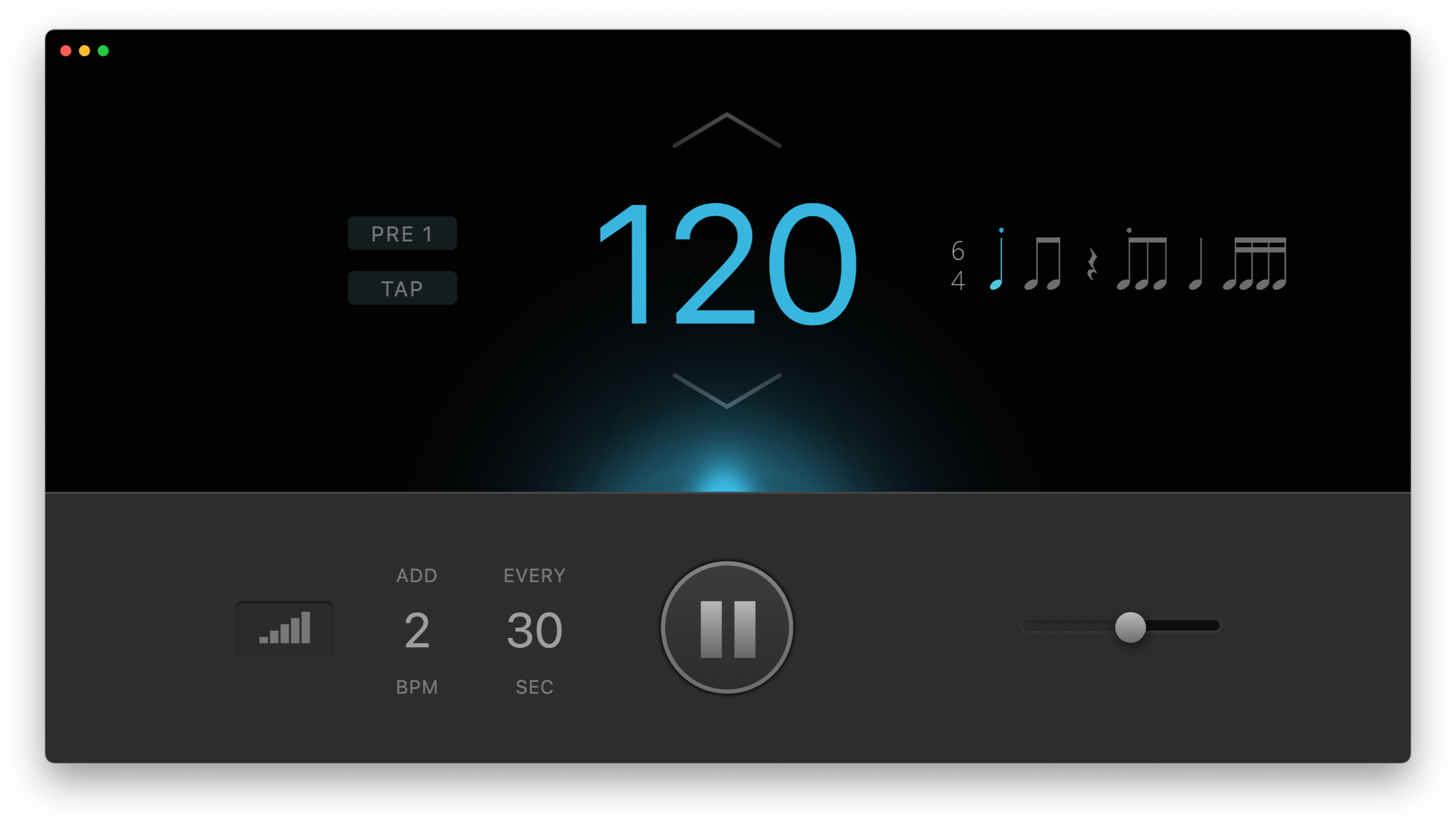
- Click the arrows to change the tempo. Click and hold to scroll.
- Click the tempo number and drag up/down to scrub.
- Keyboard:
Up/Down changes tempo by 1 BPM.
- Keyboard:
Left/Right snaps to the nearest 5 BPM step first, then changes by 5 BPM.
- Keyboard: Press
Enter to type an exact value.
- Tap the TAP button at least three times in a row. Keyboard:
T / Backspace.
Subdivisions
- Click the note icon to change the subdivision for that beat.
- First click: two eighth notes “ti-ti”.
- Next click: triplets.
- Next click: four sixteenth notes.
Accents & Rests
- Click the small buttons below a note to add an accent or a rest.
- Right-click a note to quickly accent the first subdivision.
Time Signature
- Click the time signature to see available options.
- For 5/8 and 7/8, use the button below the time signature to cycle through groupings.
Auto Mode
- Auto mode has two variants: one mutes clicks, and the other gradually increases or decreases tempo.
- Press AUTO to activate. Keyboard:
A.
- Switch modes by clicking the MUTE/ADD/BAR/SEC labels.
- Change values by clicking to type, or by scrubbing numbers vertically.
Sounds & Volume
- Press
Space to start/stop the metronome.
- Drag the slider, or press
Cmd + arrow keys, to adjust the volume.
- Press
M to mute.
- Choose a sound from Settings or the app menu.
- Press
O to cycle through sounds.
- You can choose the sound output device in Settings.
- Pan is available in Settings and in the app menu.
Presets
- There are 9 memory slots for saving tempo, time signature, and subdivisions.
- Press
S to save the current preset.
Cmd+1 .. Cmd+9 save the current settings to a specific slot.1 .. 9 loads a preset.P cycles through presets.
Display Options
- Tempomate prevents your computer from entering sleep mode while the metronome is playing.
- You can also prevent the display from turning off in Settings or from the app menu.
Cmd+T keeps the window floating on top of others.
L toggles the click light.F enters or leaves full-screen mode.- The window is resizable.
Many options are also available from the app menu. Happy practicing!